

Your host can publish SPF, DKIM and DMARC for you only if it also answers for your DNS
A mail host can generate every authentication record your domain needs. Whether it can keep them correct depends on one thing: who serves your DNS zone.

An earlier post explained why deliverability is decided in DNS: what SPF, DKIM and DMARC each prove, and the order to set them up in. This one asks who actually writes those records, and who keeps them right.
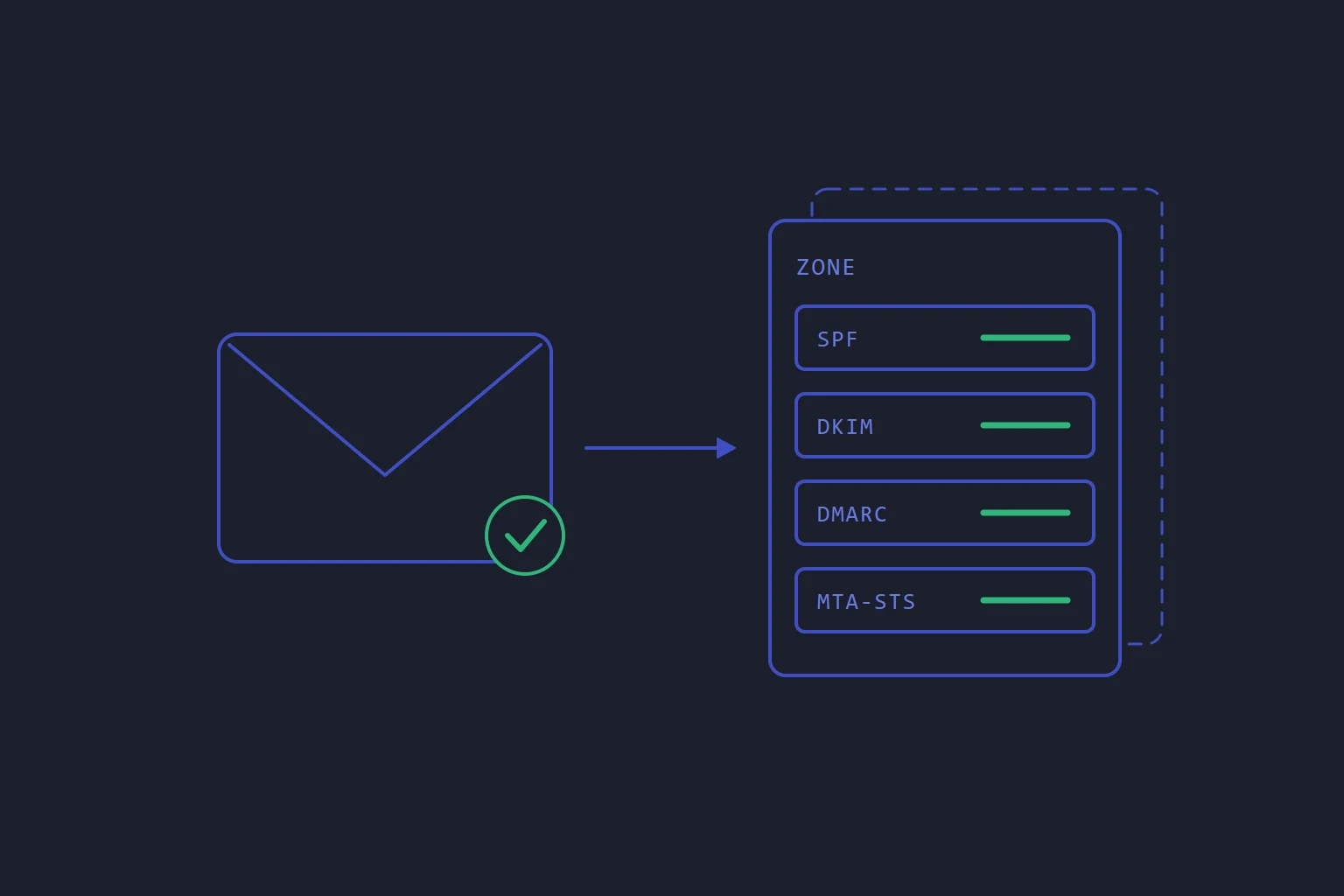
Any mail host can generate the records. Only one that answers for your DNS zone can publish them, and keep them right when something changes. Otherwise they are a list for you to copy, and a copied record is a snapshot.
One question decides it
When you turn on email for a domain at lbreeze, the same set of records is generated either way. What happens next depends on where the domain's DNS lives.
If we serve your DNS, the records are written into your zone for you: SPF, DKIM, DMARC and MTA-STS, together with the MX record that makes mail arrive and the mail.yourdomain host it points at. You type nothing.
If your DNS is somewhere else, we cannot write into it. The control panel shows the records instead, on the domain's DNS & security tab, for you to copy row by row to your DNS provider. Two things are not in that table and are easy to miss: the MX record and the record for mail.yourdomain itself. You add those by hand too. Until the mail name points at the right server, the Certificate card on the same tab says which address it should point at.
Neither arrangement is wrong. The difference shows up later.
What gets published, and why it is set that way
The defaults are worth knowing, because each one is a choice you might otherwise make differently.
- SPF says that the hosts in your MX records may send for you, and ends in
~all(softfail), not-all. A hard fail on a record we generated would start bouncing your legitimate mail the moment you forgot to tell us about a service that sends as you, and that costs more than the extra protection is worth. - DKIM is an RSA-2048 key, and every message your mailboxes send is signed with it.
- DMARC is published at
p=none, monitoring mode, with reports going todmarc@yourdomain. You do not need a mailbox for that address: the platform reads the reports and charts them in the DMARC alignment card. As the earlier post said,p=noneis a listening posture, not protection, and reading the reports is genuinely your part. - MTA-STS tells other servers to use an encrypted connection when they deliver to you. It is published in reporting (testing) mode, and the TLS reports card shows what other servers say about it when they send reports.
If your mailboxes live with another provider, set Who holds the mailboxes to that provider. We then stop accepting mail for the domain but keep signing what your website sends. The SPF record drops mx, because our mail servers are no longer the ones sending, and MTA-STS is not published at all, because it would point senders at servers that refuse the mail. You still point the MX records at the other provider yourself.
DANE needs a signed zone
DANE goes one step further than MTA-STS: it publishes a fingerprint of your mail server's certificate in DNS, so a sending server can check it is talking to the right machine. That is only trustworthy if the DNS answer itself cannot be forged, which is what DNSSEC is for.
So DANE is published only on zones that are DNSSEC-signed, and signing is a switch you turn on per zone (Turn on DNSSEC covers the order to do it in). Once the zone is signed, the DANE record is published for your mail server's certificate and kept in step when the certificate renews. Turning DNSSEC off removes it. If your DNS is elsewhere, DANE is not in the list of records to copy.
Where copied records go stale
Copying the records once is easy. The copy goes stale at two predictable moments.
When the signing key changes. Rotating DKIM is a click you make: Rotate the signing key on the DNS & security tab. It does not happen on a schedule. When you click it, the new key is published beside the old one, so mail already signed with the old key keeps checking out. That is seamless in a zone we serve. If your DNS is elsewhere, new mail is signed with the new key from then on, and receivers can only check it once the new DKIM record is in your DNS. Add it at your provider straight away, or your mail fails DKIM until you do.
When something new sends as you. A newsletter tool, a shop or a helpdesk that sends with your address has to be named in your SPF record, or its mail fails the check. On the Filtering & delivery tab, the Mail delivery card has a box called Who else may send as this domain: add the value the service gives you, one per line, for example include:_spf.example.com, and click Save delivery. The records are updated to match. In a zone we serve, that is the end of it. If your DNS is elsewhere, copy the new SPF line across again.
Neither produces an error message. Some mail simply stops being trusted, and nobody notices until a reply goes missing.
How to tell where you stand
On the Mailboxes page, the Authentication column shows signed or unsigned for the DKIM key, and Health shows Delivering when all is well. That tells you what we hold, not what an external DNS provider is serving, so after any change check the raw headers of a test message, as the earlier post describes.
The short version
- Whoever serves your DNS zone is the only party who can keep your email records correct without your help.
- With your DNS at lbreeze, SPF, DKIM, DMARC, MTA-STS, MX and the mail host are published for you, and DANE too once the zone is signed.
- With your DNS elsewhere, copy every row of the DNS records table, then add MX and
mail.yourdomainyourself. - After rotating the DKIM key or adding a sender, an external zone needs the new record copied across at once.
p=noneand reporting-mode MTA-STS are where we start you, not where you are finished. The reports are yours to read.
If moving the zone is an option, Point your domain at lbreeze explains how; Make sure your email arrives has every step above with the screens.
- dns
- deliverability
- dkim
Read next
- EmailWhether your email arrives is decided in DNS, before you send anything
Nearly every "our email goes to spam" problem is three DNS records that were never set up properly. The receiving server decides whether to trust you before it has read a word of your message.
- DNSTurning DNSSEC off is the dangerous direction
Switching DNSSEC off feels like the safe, cautious move. Done in the obvious order, it takes the whole domain down for everyone whose resolver checks signatures.
- DNSYour domain's transfer code is a password
The auth code that moves a domain between registrars is a credential, not a reference number. Keep it out of links and chats, and get the DNS ready before you use it.
- DNSLower the TTL the day before the move, not on the day
A DNS change reaches the nameservers instantly. What you actually wait for is the old record expiring from other people's caches — and by the time you are cutting over, it is too late to shorten that wait.